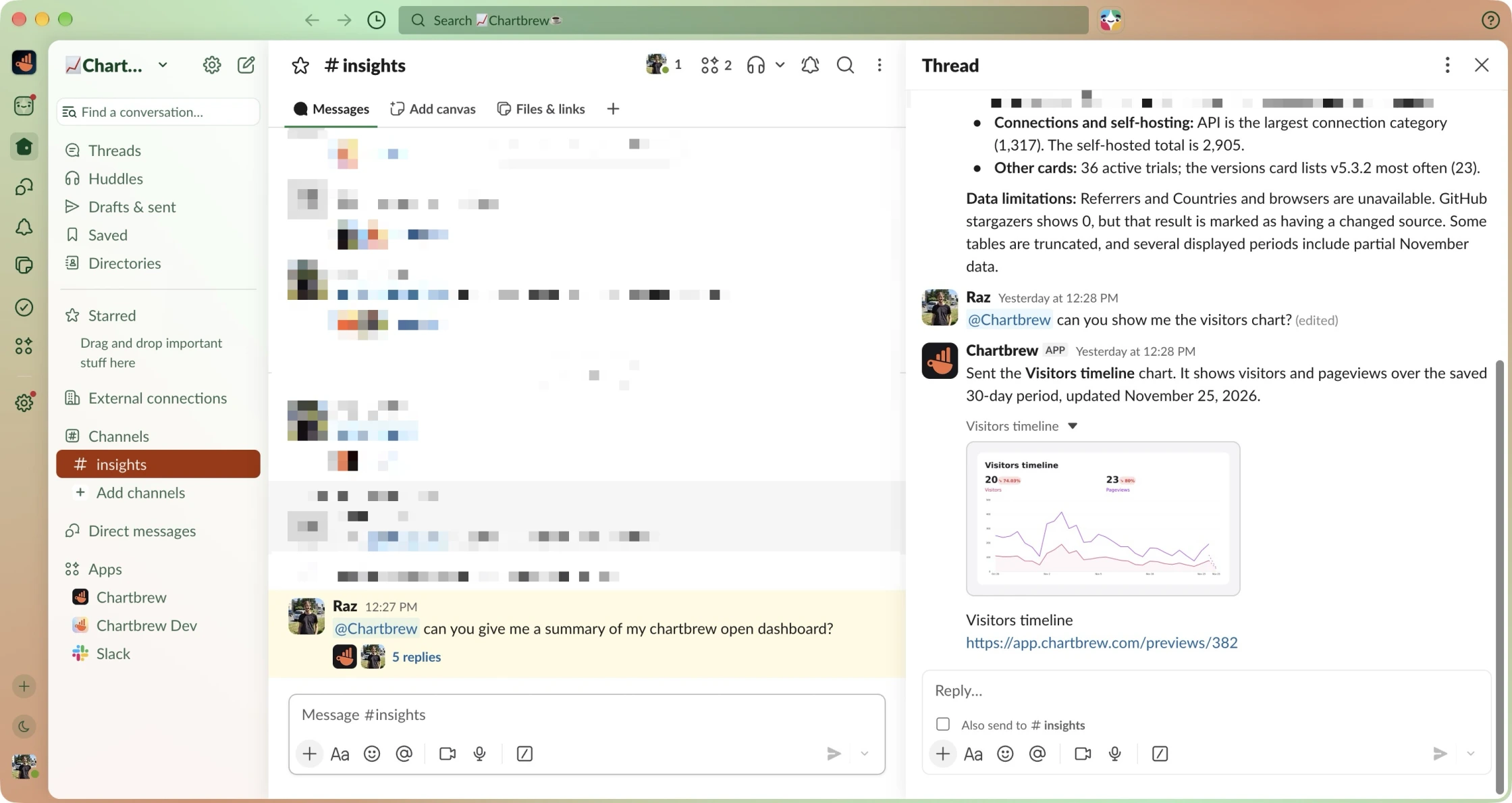

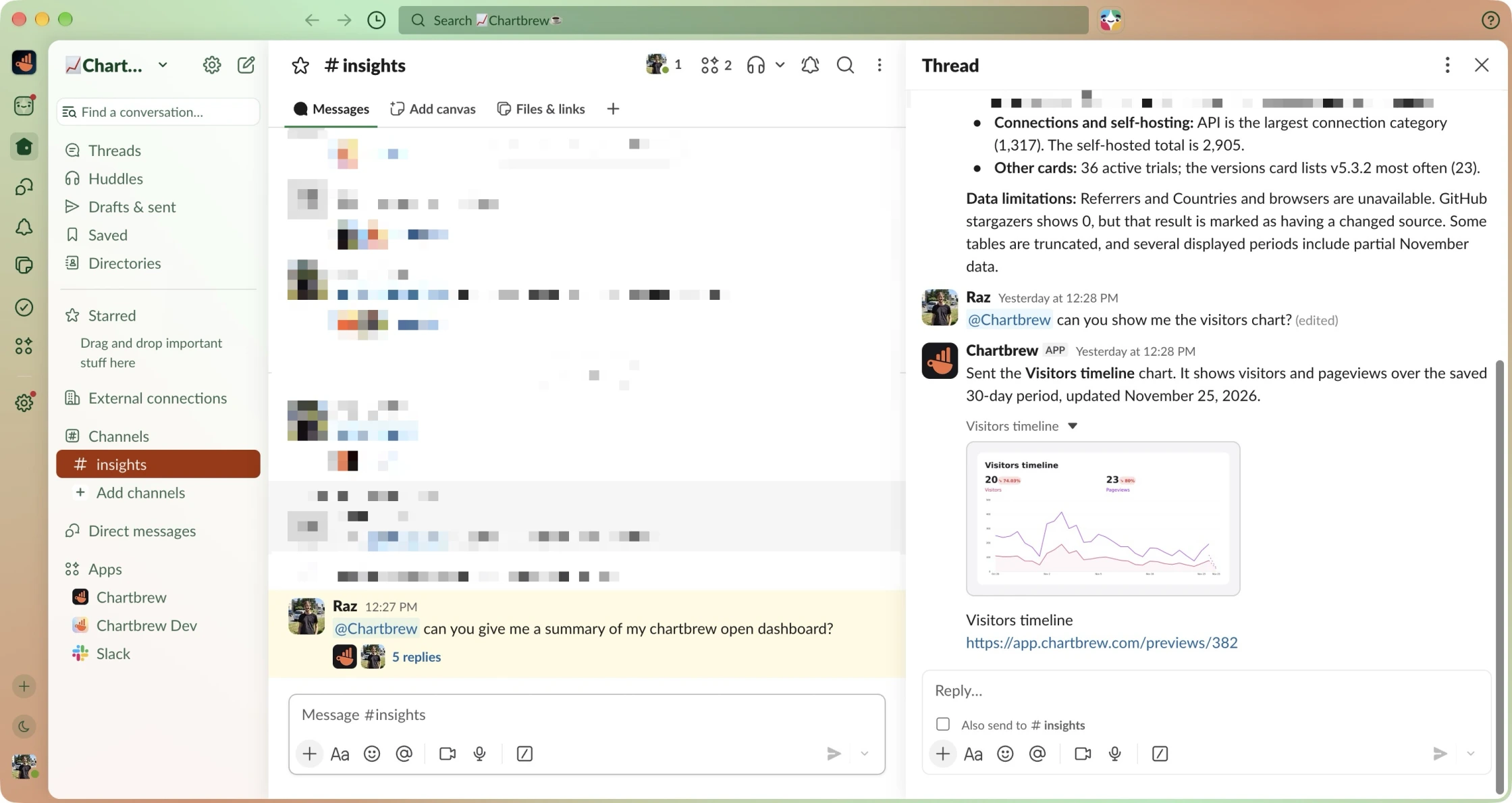
“Can you show me the visitors chart?” I asked that in our #insights channel after Chartbrew gave me a summary of our dashboard. The bot found Visitors timeline and posted it in the thread. I didn’t have to remember the chart’s name or leave Slack to look it up.
Here’s how to set that up for your team. You’ll need a Chartbrew team with a dashboard you want to ask about and a Slack channel where the answers belong.
Connect your Slack workspace to Chartbrew
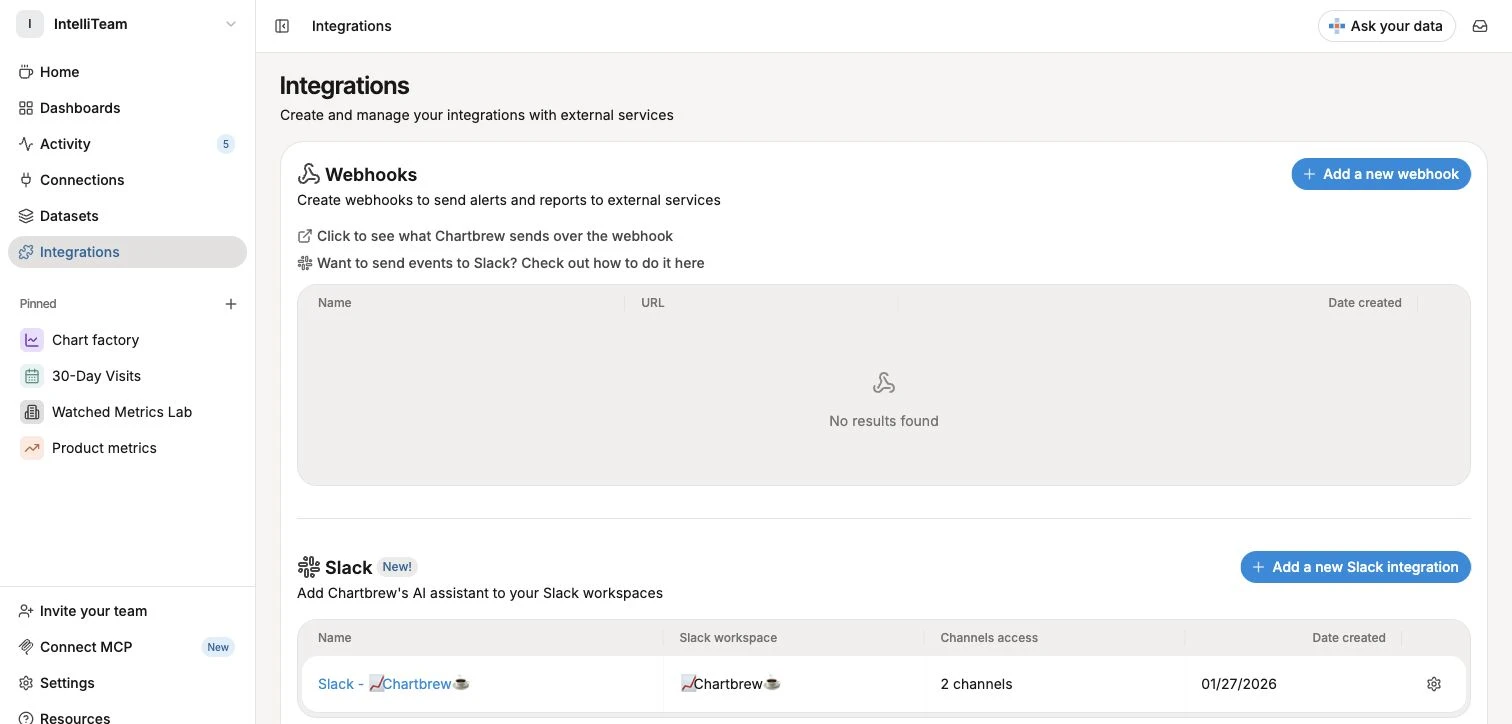
- Sign in to Chartbrew as a team owner or admin. Open Integrations in the left sidebar. Below Webhooks, find Slack and select Add a new Slack integration.
- Select Add to Slack. Check the workspace name on Slack’s approval screen and approve the installation.
- In Slack, enter
/chartbrew connect. The person who installed the app or a Slack workspace admin can run this command. Follow the link, choose the Chartbrew team that owns your dashboards, and select Connect to Slack.
If you run Chartbrew on your own server, configure the Slack app for your installation first. The self-hosted Slack setup guide includes the app manifest and the URLs Slack needs.
Choose who can ask and who can see the answer
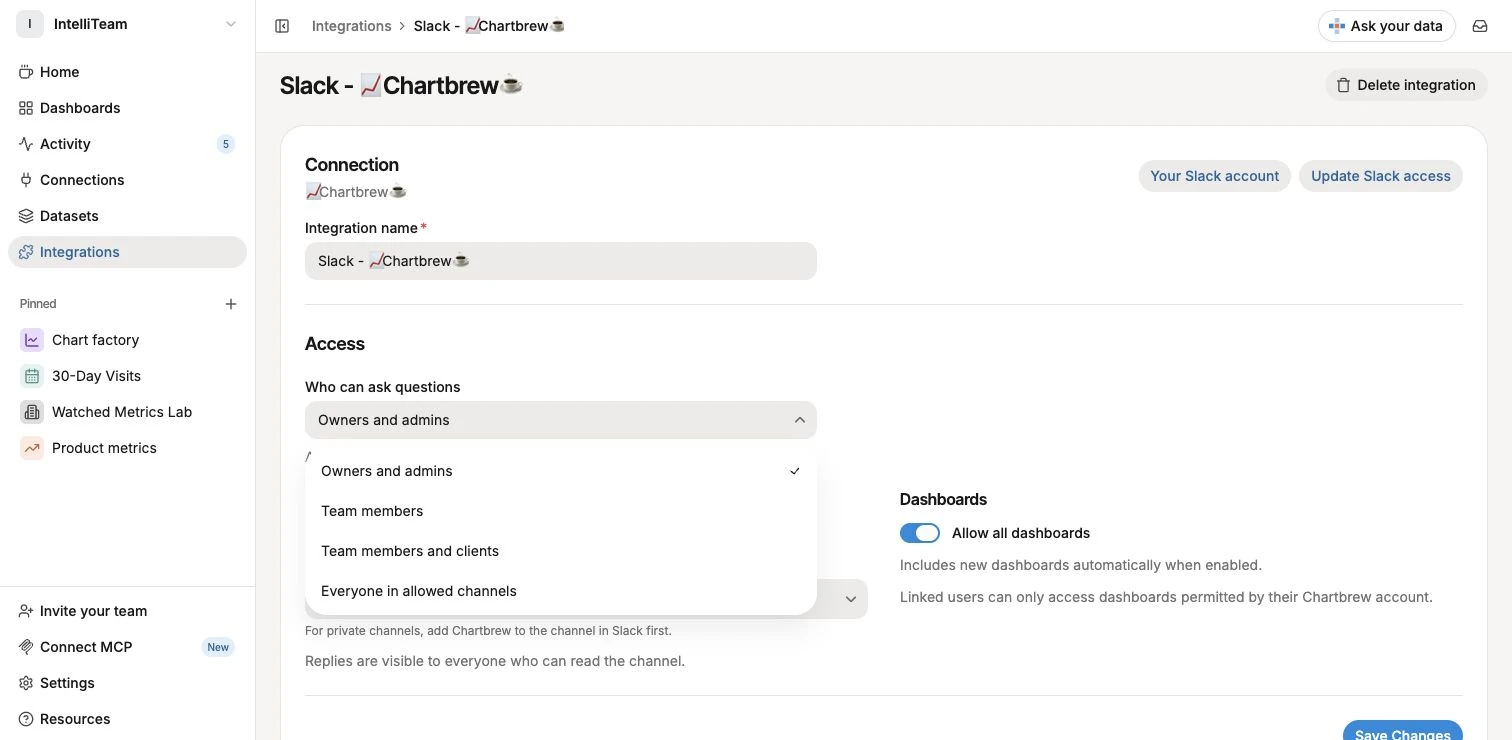
Open your Slack integration in Chartbrew. Under Access, use Who can ask questions to choose one of four options.
- Owners and admins lets you try the bot with the people who manage your Chartbrew team.
- Team members also lets team editors and viewers ask questions.
- Team members and clients includes people who have access to individual dashboards, such as a client you invited to see their report.
- Everyone in allowed channels lets someone ask a question even if they have no Chartbrew account. They get read-only access to the dashboards you make available through this integration.
For the first three options, each person runs /chartbrew link in Slack, follows their personal link, and selects Link account in Chartbrew. A linked user can ask about dashboards that both their own account and the integration can access. Direct messages to the bot always require a linked account. To remove your personal link later, run /chartbrew unlink.
Anyone who can read a channel can read the bot’s replies there. For a client channel, turn off Allow all channels and choose the channel under Selected channels. Add Chartbrew to a private channel in Slack first so it appears in the list. Turn off Allow all dashboards, select the client’s dashboard, and click Save Changes. If you enable Allow all dashboards, the integration also includes dashboards your team creates later.
Ask for a summary, then follow up in the thread
In an allowed channel, mention @Chartbrew and ask about something your team tracks. In our example, I started with “can you give me a summary of my chartbrew open dashboard?” Chartbrew gave me a rundown and pointed out that some November figures covered only part of the month.
My next question was shorter. In the same thread, I wrote “@Chartbrew can you show me the visitors chart?” The reply included the chart, its saved 30-day period, the date it was updated, and a link to open it in Chartbrew.
Open the full-size Slack conversation
You can also start with the question itself. Try “@Chartbrew did we get more signups last week than the week before?” if your team tracks signups. Then ask for the chart in the same thread so everyone can see where the answer came from.
If the bot can’t find a dashboard you expect, run /chartbrew status to check which team is connected. Then check Selected dashboards in the integration and, if you linked your account, whether you can open that dashboard in Chartbrew.
Next steps
- If your team asks for the same numbers every Monday, schedule a weekly dashboard snapshot in Slack.
- If a client wants to check the numbers between updates, create a branded client report and share its link in their channel.
- To ask about your data while you work in Claude or Codex, connect your assistant to Chartbrew through MCP.