

“How far are we from $3,000 in monthly recurring revenue?” If you already track MRR in Chartbrew, you can give Claude or Codex access to the saved chart through the Model Context Protocol (MCP). Your teammate can then check the answer against the same number you see in the dashboard.
You'll need access to a Chartbrew team with a saved chart. Choose the setup below for the app you use. The example only needs permission to read data.
Find your Chartbrew MCP server URL
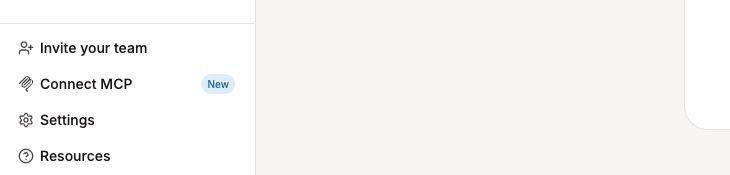
Open your dashboard. At the bottom of the left sidebar, select Connect MCP, just above Settings. You can also open Settings and select MCP under Account.
Find Connect an app. For Claude, select Copy URL next to Server URL. For Codex, leave this page open so you can copy the command for your installation. The screenshots show a local development server. Claude's web connector needs a public HTTPS server URL that Claude can reach.
Connect Claude to Chartbrew
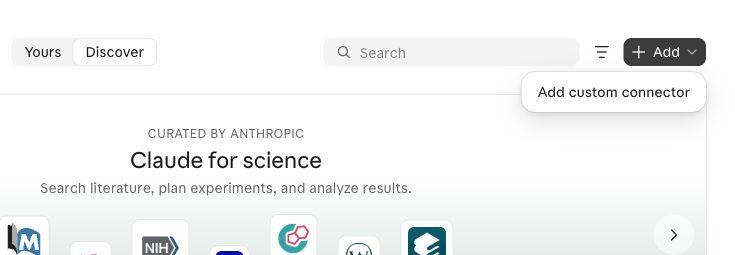
- In Claude, open Customize → Connectors. Select Add at the top right, beside the search box, then Add custom connector. If your workspace restricts custom connectors, ask a workspace owner to add it.
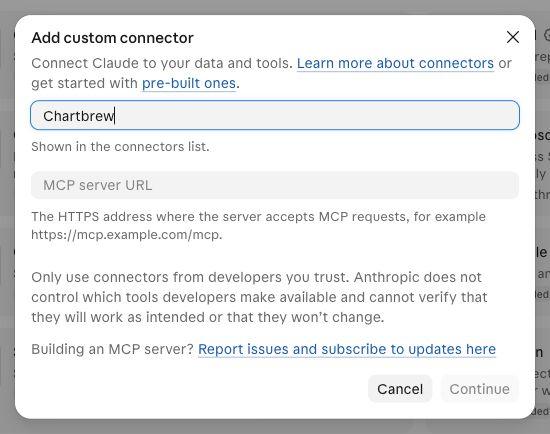
- Enter Chartbrew as the name. Paste the URL from Chartbrew into MCP server URL and select Continue. Finish adding the connector and select Connect if Claude prompts you to sign in.
- On the Chartbrew approval screen, choose the team that owns the dashboard. Keep Read data enabled, review the other permissions, and select Allow access. Open a Claude chat and try the question below. Claude connector instructions
Using Claude Code? In Chartbrew's Connect an app section, expand Claude Code and copy its terminal command. Run it, open Claude Code, type /mcp, and select Chartbrew to sign in and approve the team.
Connect Codex to Chartbrew
In Chartbrew, expand Codex under Connect an app. Select Copy command below the command and run it in your terminal. Chartbrew fills in both URL arguments for your installation.
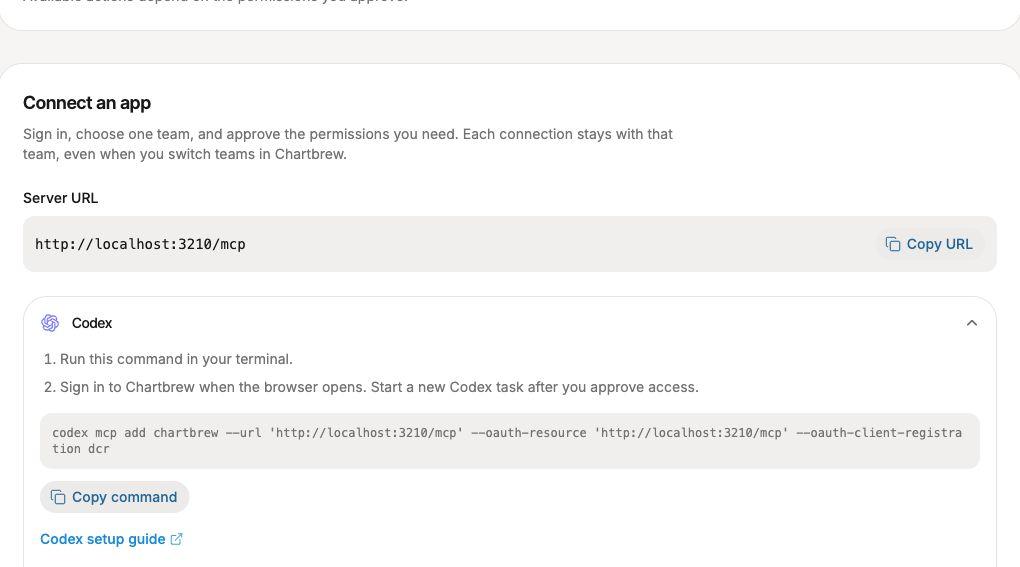
Sign in when the browser opens. Choose the team that owns your SaaS dashboard and approve Read data. Start a new Codex chat so the connection is available. If the dashboard is missing, check Connected clients in Chartbrew's MCP settings. Each connection belongs to the team you approved. Switching teams in the Chartbrew sidebar keeps the connection with its original team.
Ask how much MRR is missing from the goal
In Claude or Codex, ask the question you’d ask a teammate before a revenue review.
Check our SaaS metrics. How far are we from $3k MRR?
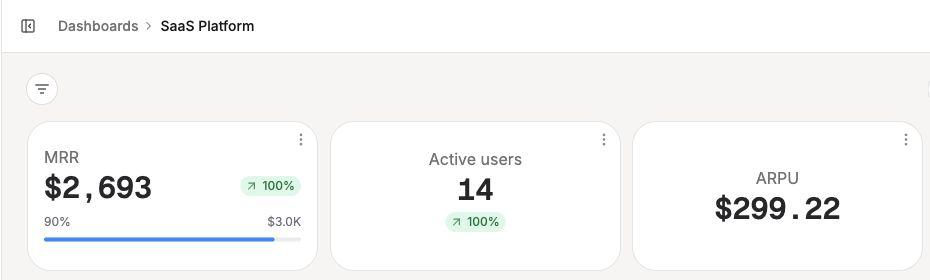
We’re $307 short. The SaaS Platform dashboard shows $2,693 in monthly recurring revenue against a $3,000 goal. That puts us at 89.8% of the goal, rounded to 90% on the chart.
To check the answer, open SaaS Platform and find MRR in the first row. Read the percentage beside the goal bar. The green percentage badge above it is a separate indicator. A saved chart result can also be older than the underlying billing data, so check the result's timestamp before using it in a revenue update.
For other clients, permissions, and authentication options, see the Chartbrew MCP documentation.
