

Chartbrew v6 brings chart creation, metric reviews, and report sharing closer together. You can build a chart with AI, inspect its data, track changes over time, and share the result in a report that matches your brand.
This release includes a new Chart Studio, geographic maps and scatter charts, watched metrics, chart history, report themes, and MCP support in both directions. It also changes how we price Chartbrew Cloud: dashboards, charts, data sources, and datasets are unlimited, with monthly allowances for data requests and AI credits.
Existing customers keep their current pricing. We explain the new plans and what counts toward usage below.
A new Chart Studio
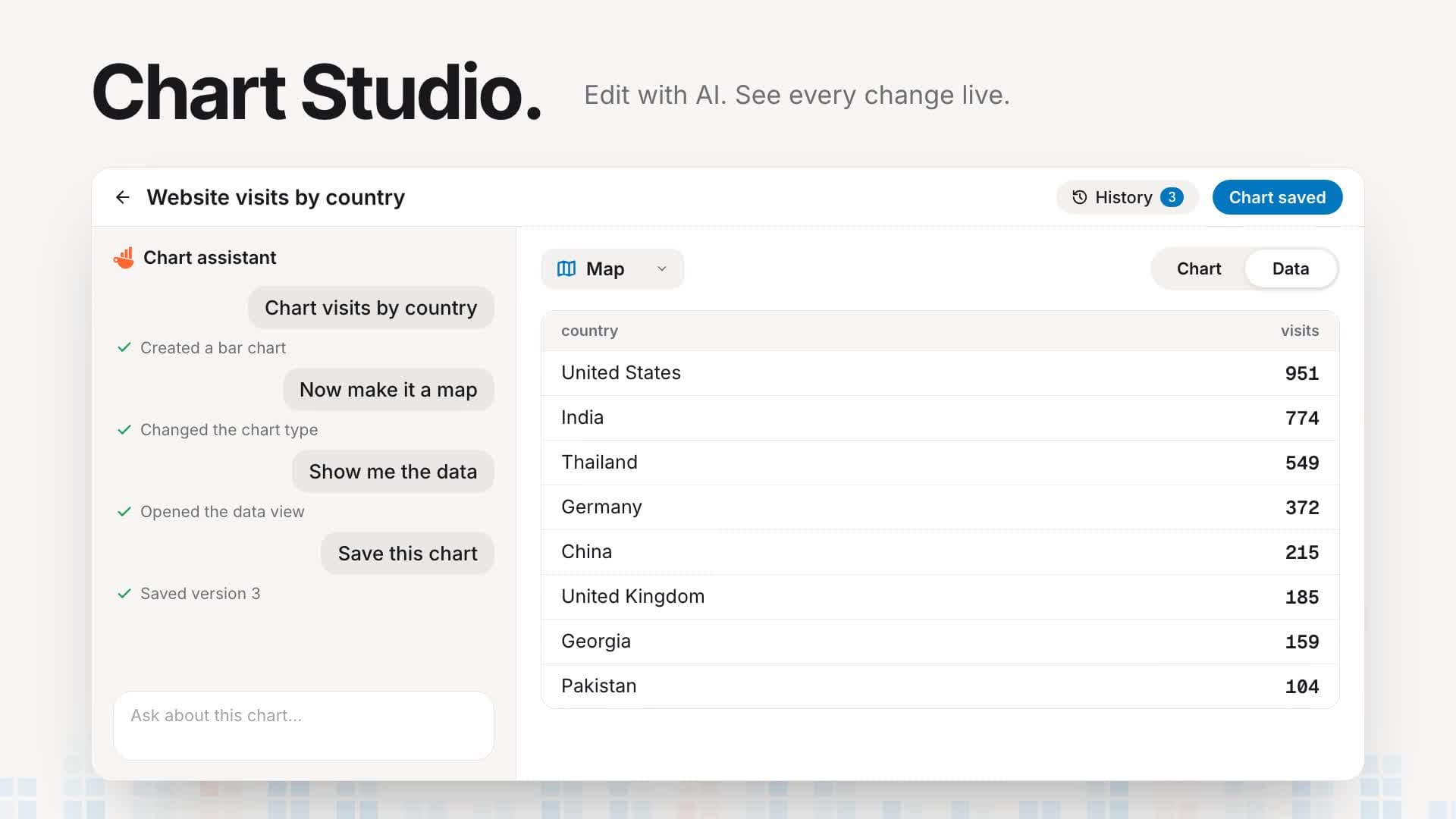
Chart Studio puts the chart preview, data view, settings, and AI conversation in one place. You can move between the result and the data behind it while you build.
Start with a request such as “Show website visits by country.” Then ask for a different chart type, inspect the values in the data view, or adjust the chart settings yourself. AI helps with the work, while the query, data, and presentation remain available for you to review.
Conversations now stay linked to their charts. When you return to a chart, you can continue the discussion that produced it instead of starting a separate conversation and explaining the task again.
You can also create charts directly from a dashboard. Select an existing dataset or describe the chart you need. Preview and refine it before you add it to the dashboard. This makes it easier to build on data that your team already uses.
Chart history gives you a way back
Chartbrew keeps the latest 100 versions of each chart, including changes made with AI. You can review changes, preview an earlier version, and restore its settings.
Restoring a version keeps the later history, so you can return to a more recent version if needed. It also leaves shared datasets unchanged.
History restores chart settings, not historical source data. If the underlying data has changed, restoring an old chart version does not restore the old numbers.
Clearer charts, plus maps and scatter plots
Graphical charts now use Apache ECharts. We used this change to improve layouts, labels, tooltips, and how charts fit different screen sizes. Horizontal bars, line charts, and KPI layouts also received specific improvements.
Two new chart types expand what you can show:
- Geographic maps show values by region or coordinates. Use them to compare activity across countries, inspect regional results, or plot locations.
- Scatter charts compare numeric values. For example, you can plot order value against delivery time to look for a relationship. Each dataset can have its own series and color.
The chart data also has a new saved format. Charts can display saved results while a source refresh completes. This helps separate opening a dashboard from fetching fresh data. Saved results still reflect their last successful update; opening a chart does not make old data current.
Watch the metrics that matter
A dashboard shows the current picture. Watched metrics help you see what changed between reporting periods.
Choose the chart metrics you want to follow. Chartbrew compares completed periods, records changes, and brings them into Home and Activity. Quarterly and yearly comparisons are now available alongside the other reporting periods.
Completed periods matter. A partial month can look lower than a full month even when performance is steady. The comparison shows the periods involved so you can judge the result in context.
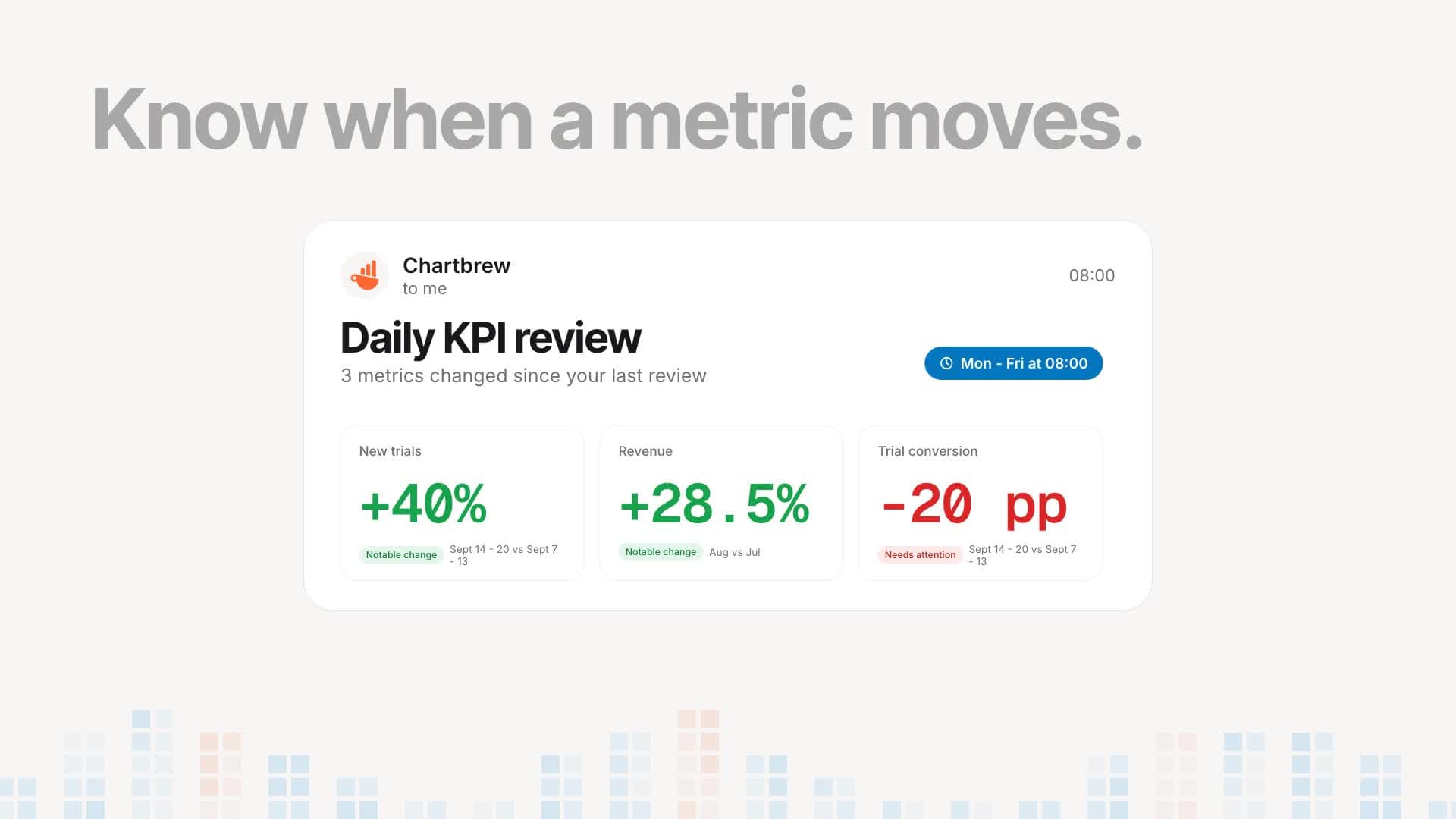
KPI reviews bring these changes together for a regular check. You can schedule email summaries and use metric recommendations to find other values worth watching. Search and filters help when your list grows.
Metric monitoring reuses successful chart refresh results to record observations. Recording the observation does not require another source request.
Home and Activity have clearer jobs
Home now gives you a place to ask a question, continue recent work, and review metric changes. Suggestions use the data and context available to your team.
Activity has dedicated views for changes, watched metrics, KPI reviews, alerts, and data health. You can review a change or investigate a data problem without searching through a single mixed feed. You can also dismiss data health issues that no longer need attention.
Navigation has changed too. Pin the dashboards you use often, then give their shortcuts a distinct icon and color. This keeps regular reports close at hand.
MCP works in both directions
MCP, or Model Context Protocol, lets AI tools work with external services. Chartbrew v6 supports two separate uses: connecting an external service to Chartbrew, and connecting an AI app to Chartbrew.
Connect external MCP services to Chartbrew
Add an MCP connection to give the Chartbrew assistant access to tools and data from a supported service. The connection catalogue, guided setup, and OAuth support make it easier to connect services that need a sign-in step.
Available actions depend on the tools that the service exposes and the tools you approve in Chartbrew. Not every MCP tool returns data that can become a reusable chart dataset. The dataset builder includes focused AI help for working with MCP responses.
Use Chartbrew from your AI app
Chartbrew also has its own MCP server. Connect a compatible app such as Claude, ChatGPT, Cursor, or Codex to work with your Chartbrew resources from that app.
Depending on the access you approve, the app can find dashboards and datasets, read or refresh data, explore supported sources, create datasets, and produce chart previews. A preview gives you a result to review in Chartbrew before you save it to a dashboard.
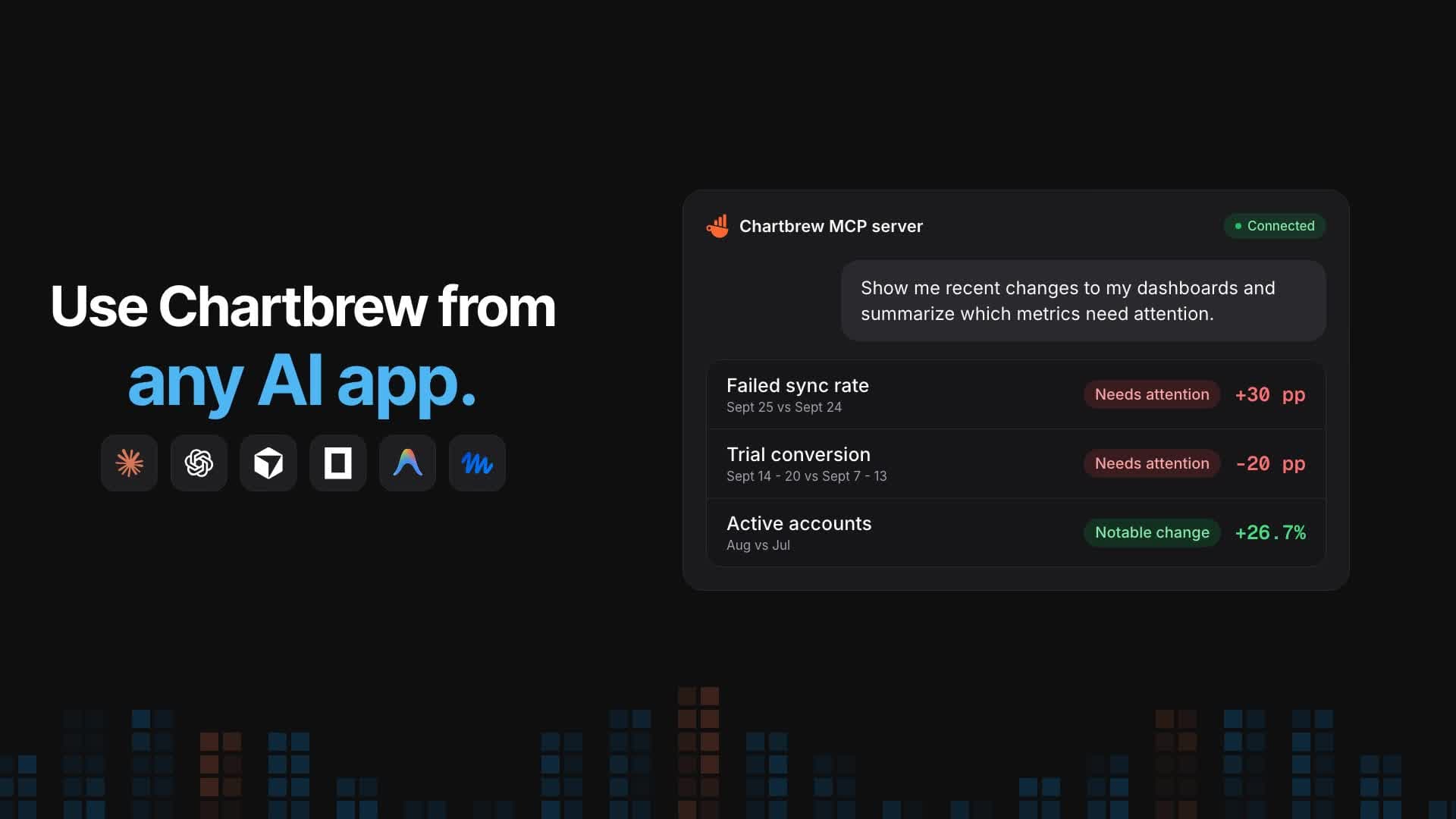
Open Settings → MCP to get your server URL and setup guides for Claude Code, ChatGPT, Claude, Codex, Cursor, OpenCode, Antigravity, and Muse CLI. You can review connected clients and remove access later.
Your team role, dashboard access, and approved permissions still apply. Connecting an AI app does not give it unrestricted access to your team. See the MCP setup guide for client instructions and access requirements.
AI that keeps more of your context
AI chat now keeps the charts, dashboards, datasets, and connections you select as context across messages. You can continue through connection setup, review clearer work summaries, and act on chart previews without losing the original task.
Personal memory lets you save instructions with /remember and manage them in settings. For example, you can save a preferred reporting style instead of repeating it in every conversation.
Team settings also include controls for AI availability and business context. Teams can decide whether to make that context available to the assistant.
Report themes you can reuse
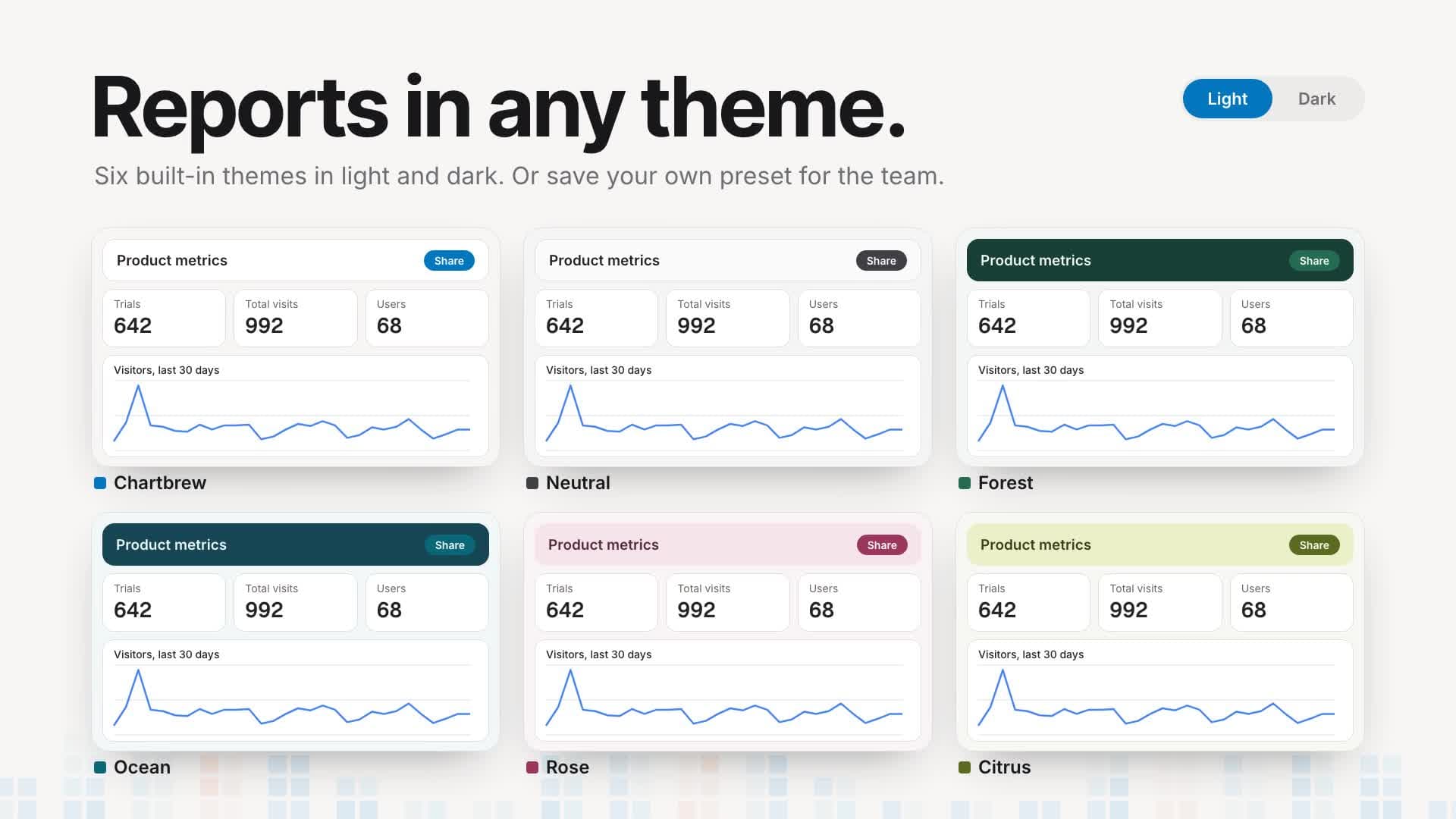
The report editor now includes six themes: Chartbrew, Neutral, Forest, Ocean, Rose, and Citrus. Each supports light and dark colors.
You can start with a theme, adjust the appearance, and save a preset for your team. Apply the preset to other reports to keep client or internal reporting consistent. The editor also gives you previews for different screen sizes.
Dashboard editing is more predictable as well. Adding a chart preserves the positions and sizes of existing charts. Tidy and Auto-arrange actions include layout previews and undo, so you can check a new arrangement before keeping it.
Share chart images without making charts public
Copy or download a chart image for a presentation, message, or written update. You can control the image size, theme, background, and visible details.
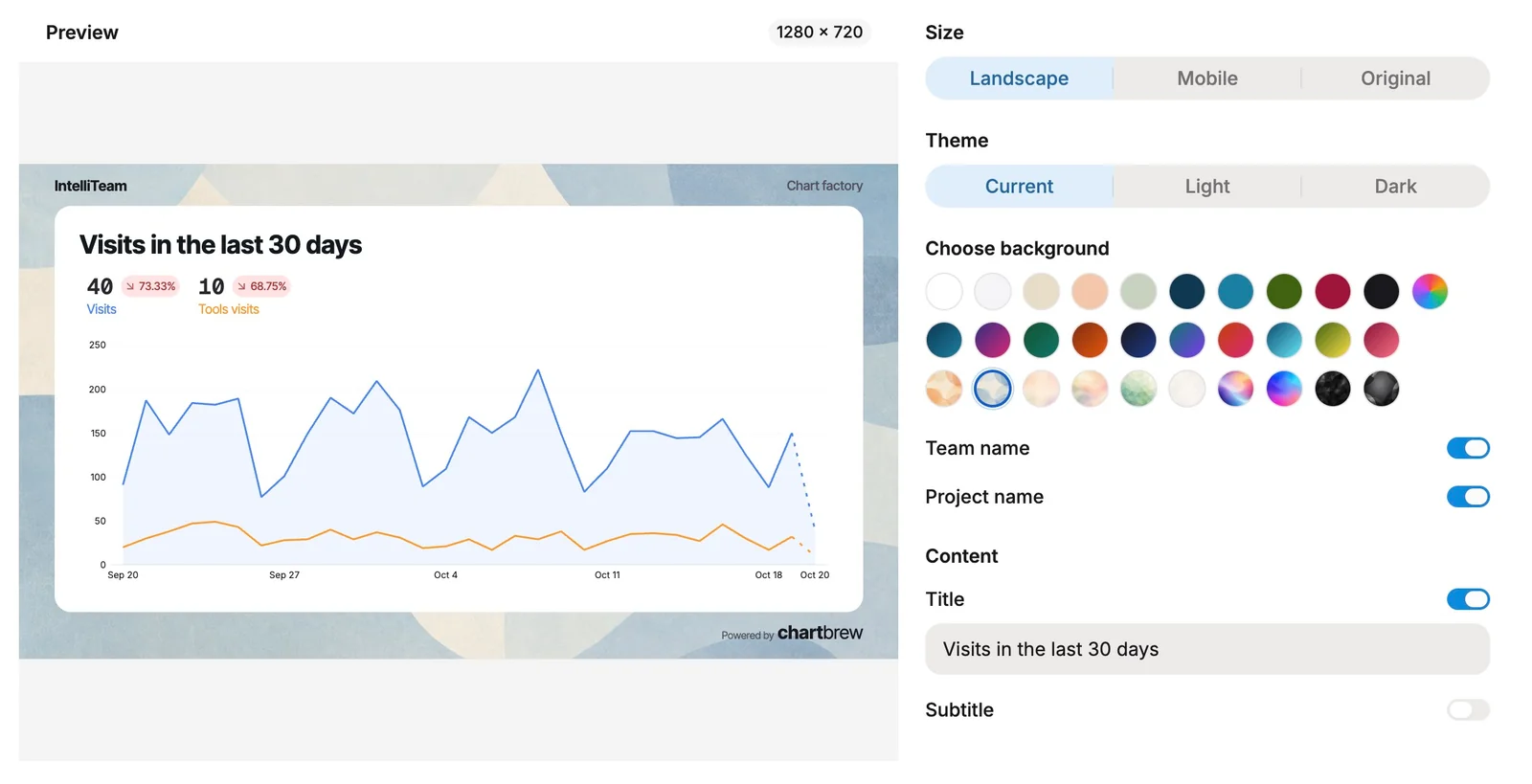
This works with private charts. You do not need to enable a public chart link to export an image. The exported file contains the data you choose to show, so share it with the same care as the report itself.
Image export supports graphical charts, KPI charts, and average charts. Table and markdown images are not supported. An authenticated PNG endpoint also makes image generation available to API clients and automation.
A Data API for your own tools
The new versioned Data API gives applications authenticated access to dataset results and chart data. It supports filters, variables, scoped API keys, dashboard access controls, and information about cached results.
Use it when another tool needs the data behind a report. You can grant access to the required resources instead of sharing a general account credential.
The Data API guide explains the endpoints, key permissions, and request format.
More control for teams
Team editor and team viewer roles give you more choices when inviting people. An editor can work on reporting content without needing an administrator role. A viewer can review the team's reports without editing them. Dashboard-specific access remains available for people who should see only selected work.
Team analytics now shows source requests and AI usage. Instance administrators can also review platform usage. These views help you understand which work uses data requests or AI before you change a schedule or plan.
Onboarding, invitations, and connection setup have also been revised. New teams get clearer setup steps and report previews, while empty dashboards give a more direct route to the first chart.
Cloud pricing: unlimited resources, measured usage
With v5, the plan affected how many dashboards and charts you could create, as well as how often your data could refresh. With v6, every cloud plan includes unlimited dashboards, charts, data sources, and datasets.
The main usage limits are now monthly data requests and AI credits. You can build the reports you need, then choose a plan based on how much fresh data and AI work your team uses.
| Resource or activity | v5 | v6 |
|---|---|---|
| Dashboards | 10, 100, or 500, depending on plan | Unlimited on every plan |
| Charts per dashboard | 30, 60, or 80, depending on plan | Unlimited on every plan |
| Data sources | Unlimited | Still unlimited |
| Datasets | Reusable across charts | Unlimited on every plan |
| Refresh schedule | Plan intervals of 6 hours, 1 hour, or 30 minutes | Custom schedules under shared technical limits, using your data-request allowance |
| AI work | Included monthly credits | Included monthly credits, with additional credits available on every plan |
“Unlimited resources” refers to the reporting resources above. Team member and client account allowances still depend on the plan. Shared technical limits also apply.
The v6 plans
Prices are in USD. Usage allowances reset monthly on both monthly and yearly subscriptions.
| Plan | Monthly billing | Yearly billing | Data requests / month | AI credits / month |
|---|---|---|---|---|
| Starter | $49 / month | $490 / year | 5,000 | 2,000 |
| Growth | $129 / month | $1,290 / year | 20,000 | 10,000 |
| Professional | $399 / month | $3,990 / year | 80,000 | 50,000 |
Starter includes 3 team members. Growth includes 10 team members and 20 client accounts. Professional includes unlimited team members and 500 client accounts. See the pricing page for the full comparison.
Existing customers keep their current pricing. The prices above describe the new v6 plans.
What counts as a data request?
A data request is one successful query or complete fetch from a connected source that does not come from cache.
- Viewing saved dashboard data does not use a request.
- A cached result or a failed fetch does not count.
- A successful query counts even if it returns no rows or unchanged data.
- One complete API fetch counts once, including its required pages.
- Three separate successful, uncached queries count as three requests.
- Reusing one fetched result across multiple charts counts once.
The same rule applies whether the fetch starts from a manual action, a schedule, a report, an alert, AI, the API, or MCP. Temporary AI exploration counts too, even if you do not save its result. A successful source query still counts if a later step fails.
For a simple example, one successful uncached query every hour uses 24 requests a day, or 720 over 30 days. If that result serves several charts, those charts do not each add another request. If each chart runs a separate fresh query, each query counts.
This gives you control over where to spend the allowance. Refresh the sources that change often more frequently, and refresh slower-moving reports less often.
None of our current customers are close to the new data request limits. Based on current usage, no customer will need to upgrade because of this change. Existing customers also keep their current pricing.
AI credits are a separate allowance
AI credits cover Chartbrew AI work. Data requests cover fresh source fetches. One AI task can use both: the assistant might use credits to work on a question and data requests to fetch the values needed to answer it.
Both allowances are shared by your team. They are not separate limits for each person or dashboard. An AI credit is not the same as one question; the amount used depends on the work.
You can add AI credits on any plan without changing your subscription. Data-request top-ups cover occasional spikes. Automatic top-ups require you to opt in and set a spending cap.
If data requests run out, new source fetches pause. Your saved work and available cached results remain accessible, and you can still edit without fetching fresh data. Those results can become out of date until you add requests, upgrade, or the allowance resets.
If AI credits run out, new Chartbrew AI work pauses. Manual work remains available, and non-AI data refreshes can continue while data requests remain available.
These cloud allowances are separate from running Chartbrew on your own infrastructure. Self-hosted users manage their own infrastructure and any AI provider costs.
Upgrading from v5
Chartbrew v6 includes changes to chart rendering, saved chart data, and dashboard layouts. Self-hosted users should test the upgrade on a database copy before applying it to production.
Follow the v5 to v6 migration guide for the full upgrade steps, requirements, and checks.
Back up your database, configuration, and uploaded files. Keep the existing encryption keys. Stop application instances and background workers while you apply database migrations and convert cached chart data.
After migrations, run the cached data conversion from the server directory with your production configuration loaded:
NODE_ENV=production npm run viz:prepared-backfill
This converts existing cached chart data without making source requests. Review the report and check your main dashboards before reopening the app.
For unresolved charts, the optional --refresh-unresolved mode makes live source requests. It applies to charts without prepared snapshots whose last successful refresh was within 30 days. That mode makes live requests even with --dry-run. Use the cached conversion without --refresh-unresolved for an offline check.
There are two other changes to check:
- The visual SQL builder has been removed. Use the updated query editor and AI help where available.
- The legacy
chartDataresponse field has been removed. Integrations that read it must move to the new chart data format or the Data API.
Use the release notes for the selected v6 release and its upgrade instructions. If you need to return to v5, restore the backup with the matching v5 application. Do not run v5 against a database that v6 has migrated.
Try v6 with a report you already use
Start with one familiar report. Open a chart in Chart Studio, review its data, watch a key metric, and apply a report theme. If you use an external AI app, connect it through MCP and ask it to find that report.
You can start a 14-day cloud trial without a credit card, compare the cloud plans, or run Chartbrew on your own infrastructure. Bring questions and feedback to our Discord community.
